Exporting from Blender
Every delivery this project has received came out of Khronos glTF Blender I/O, and most of the defects found in them are Blender defaults rather than modelling mistakes — more often in the scene and its materials than in the export dialog. This page collects the ones that bite, each with what the export does and what to do instead.
It is informative: a reference implementation in Blender 5.2.2, the route used to verify the profile. The profile is the requirement and constrains the file, not the tool, so anyone working in other software meets it their own way.
None of it is a substitute for checking the result: run gltf-check on the exported file, and open it in the Khronos Sample Viewer before delivering it. The viewer assumes glTF’s convention and so does the file, so a correct export stands upright and faces the camera; the viewer answers orientation as well as materials, textures and transparency.
The export dialog
The dialog has 110 options. Fourteen are named here and everything else stays at its Blender default. Where the reason cites a profile section, a different value produces a file that does not conform; the rest are this reference configuration’s choices.
Option |
Identifier |
Set to |
Why |
|---|---|---|---|
Format |
|
GLB (default) |
the profile’s File format section requires |
+Y Up |
|
True (default) |
the profile’s Axes section; see the next section |
At Collection Center |
|
False (default) |
on, it relocates the origin away from the datum |
Limit to ▸ Selected Objects |
|
True |
one part per delivery, the profile’s File section; selecting makes you state what the part is |
Apply Modifiers |
|
True |
|
UVs |
|
True (default) |
the profile’s Geometry section requires |
Normals |
|
True (default) |
the profile’s Geometry section requires |
Materials |
|
Export (default) |
the profile’s Materials section |
Cameras |
|
False (default) |
the profile’s Prohibited content section |
Punctual Lights |
|
False (default) |
the profile’s Prohibited content section |
Draco |
|
False (default) |
the profile’s Prohibited content section |
Animation |
|
False |
the profile’s Prohibited content section; harmless on a scene with no actions, but better not to rely on that |
Remember Export Settings |
|
True |
the |
Copyright |
|
|
written to |
No export option applies object transforms, sets metallicFactor, names the object, or chooses a texture’s format. Those are done in the scene before the dialog opens, and the sections below cover each.
Clear location and rotation, apply scale, before exporting
The profile’s Scenes and nodes section requires exactly one node carrying no translation, rotation, scale or matrix. Any object transform left unapplied in Blender is written as that node’s TRS, and a node transform is a genuine hazard rather than cosmetic: Gazebo composes it outside its (absent) correction and RViz composes it inside its rotation, so the same file lands in two different places in the two consumers.
Getting there is not “apply all transforms”, which is the instruction you will expect. Applying a location or a rotation holds the geometry still in the world and moves the origin relative to the part, which destroys the datum the profile’s Origin section requires; clearing them moves the geometry with the object and preserves it. Scale is the exception and must be applied, because clearing it changes the part’s size. Set the scene unit scale to 1.0 as well. A file at the wrong scale is silently wrong — nothing downstream can detect it, and two assets in the wider corpus are millimetre files corrected by a URDF scale further down.
Where the origin goes is not yours to choose
The part’s coordinate system is specified before modelling starts, by naming the features it is referenced to — its datum. The profile’s Origin and Datum specification sections have the rule. Your job is to put the object origin where that specification puts it, so the origin arrives with the commission rather than being decided at the keyboard.
Four steps, in this order:
Read the datum specification. It names features of the part and says which degrees of freedom each one removes: a mounting face, a bore axis, a locating pin. Between them they fix all six, and that is what determines both the origin and the axis directions. If you were not given one, stop and ask — there is no default, and nothing downstream can recover the intent.
Set the object origin to the datum origin. Whatever it takes in Blender: snap the 3D cursor to a vertex, an edge midpoint or a face centre and use
Origin to 3D Cursor, or place an empty and snap to that.Bring the object to the world origin, with its datum axes aligned to the world axes: clear location and rotation, apply scale, as above. The datum now coincides with Blender’s world origin, which is what makes node space, scene space and the part’s coordinate system the same thing.
Export with
+Y Upon, the default.
Do not use Set Origin’s centre options to decide the origin. Blender offers four — the vertex mean, the bounding-box midpoint, the surface centroid and the volume centroid — and none of them is a datum. They are measurements of the mesh: they move when the mesh changes, they reference no feature, and a different one is a different answer. Two of them are also traps. The Center option defaults to Median, which is the arithmetic mean of the vertex coordinates and not a median at all; and which of the two it uses is silently taken from the viewport’s Transform Pivot Point unless you override it in the operator panel. So the same menu click gives different results in different sessions.
A quick way to tell whether the origin ended up anywhere meaningful: run gltf-summary on the export and read its origin at line. An origin on a mounting face reads 0.00 or 1.00 on the axis normal to that face. An origin reading 0.50 on all three axes is sitting at the midpoint of the bounding box, which is almost always a sign it was inherited rather than specified.
Carrying a direction the shape does not determine. Some parts have a forward that no feature implies — a symmetric housing that must nonetheless face a particular way. Add the feature: a plane whose normal is the forward direction, or an empty, and name it in the datum specification so it is part of the part’s definition rather than something you remembered. The specification has to state which side of the plane is forward, because a plane alone gives an axis and not a sense.
Name the object, not the mesh
Gazebo names each submesh after the node that instantiates the mesh — never after the mesh datablock and never after the material. The node name comes from the Blender object name, so renaming the mesh datablock changes nothing anyone sees.
Clear Blender’s numeric suffixes. Cube.001 and blueboat_chassis.visual.001 are both real examples from delivered files, and the suffix travels into the node name. The root node must be named for the part, with no suffix and no spaces.
Check for leftover scenes too. Six delivered files carried empty extra scenes inherited from the Blender file; the profile requires exactly one.
Metalness is the defect that keeps recurring
glTF’s metallicFactor defaults to 1.0, and so does Blender’s. A material where nobody set it is a material that says “metal”, and a plastic hull renders as dark metal.
A metallic-roughness texture does not rescue it by existing. The effective metalness is the factor multiplied by the texture’s blue channel, so only a dark blue channel brings it down. Every metallic-roughness map measured in this project’s library is a solid colour with B = 255, which means the factor was doing the deciding all along — and in four of fifteen parts the factor was unset.
Two fixes, either is fine: set metallicFactor to 0 for anything not genuinely metallic, or author a black metallic channel and carry roughness as a factor rather than a map. Prefer stating the factor, because it is readable without decoding an image.
Texture format is decided by the source image
The Images option has four values — Automatic, JPEG, WebP and None — and no PNG. Automatic, the default and the right choice, writes PNG as PNG, JPEG as JPEG, WebP as WebP and anything else as PNG. So a preset change alone will not get PNG normal maps out of a project whose source textures are JPEG — the fix is at the texture source. A WebP source is worse: it is embedded as WebP, which Gazebo cannot load.
This matters because chroma subsampling blends channels that are unrelated in a normal or ORM map, and converting an existing JPEG to PNG preserves the damage rather than undoing it. A re-export from the original texture is the remedy.
The profile’s Textures section requires PNG for normal, metallic, roughness and packed ORM maps, and for anything carrying alpha. Base colour and emissive may be JPEG. Textures are capped at 2048 pixels on each side.
Be aware that the corpus disagrees with this rule more sharply than with any other in the profile: counted by image, normal maps in the wider corpus run 38 JPEG to 4 PNG. The rule is about what this project accepts, not a description of what arrives.
Transparency is per material, not per pixel
Plan transparency per material. For cutouts — vents, perforations, mesh guards — use alphaMode: MASK with alphaCutoff 0.5 and binary alpha in a PNG base colour.
Do not tag an opaque part BLEND. Gazebo ignores BLEND and renders the material opaque, so the result looks fine there and is wrong everywhere else. One delivered chassis reached us exactly this way: 0.56% of its base colour map is a cutout region, and the whole hull had been tagged BLEND to handle it.
Turn on Apply Modifiers
Turn on Apply Modifiers in the export dialog. Off, the exporter ignores the modifier stack and writes the base mesh, so a Mirror ships half the part and nothing reports it; on, an object without modifiers exports unchanged. The profile neither requires nor forbids it.
On, each object is exported as Blender evaluates it for the viewport, so a Subdivision ships at its viewport level, not its render level. Read the triangle count from gltf-summary to catch a stack that grew more than intended.
Versions
The reference implementation uses the versions in the profile’s Authoring toolchain section: Blender 5.2.2 LTS with io_scene_gltf2 5.2.40, which writes asset.generator as Khronos glTF Blender I/O v5.2.40. Earlier deliveries report v5.1.20, which is Blender 5.1; they predate the pin and are not held to it.
The generator string records the tool and never the settings, so two files from the same exporter can still differ in image format, tangents and compression. That is why the checks constrain the outcome rather than the settings, and why will_save_settings is worth turning on — it puts the settings in the .blend where a re-export can reproduce them.
The option names and defaults on this page were read from the operator, not from documentation, and the same command checks them against a new release:
blender --background --factory-startup --python - <<'EOF'
import bpy
for p in bpy.ops.export_scene.gltf.get_rna_type().properties:
    print(p.identifier, p.type, getattr(p, "default", None))
EOF
Importing the Gazebo Material in Blender
A Gazebo compliant glTF material (henceforth “Gazebo Material”) is provided in Gazebo-Compliant-glTF-Material-Only.blend
Refer to the example file Gazebo-Compliant-glTF-Material-Example.blend to see how each component is used in Blender.
For this provided material to work in Gazebo, it is assumed you have:
A Base Color Map texture in PNG format
If you have are using an Alpha Channel, it is in the Base Color texture
You have a single ORM Map combining the Occlusion, Roughness, and Metalness as described above.
Open your Blender scene containing the mesh object to which you would like to apply the Gazebo Material
In Blender, navigate to File > Append…
Select the Gazebo-Compliant-glTF-Material-Only.blend, then select Materials, then Gazebo Compliant glTF Material from the list and click Append.
Using the Gazebo Material
Assign the material to the mesh
Use the Materials tab to assign the Base Color, ORM Map, and, if apllicable, Normal Map.
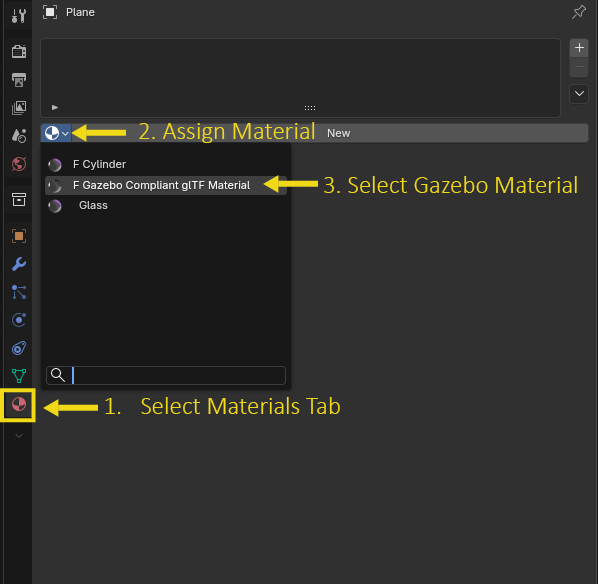
Locate the material tab
Assign the material
Locate and select the Gazebo Material from the list
Assign textures to the material
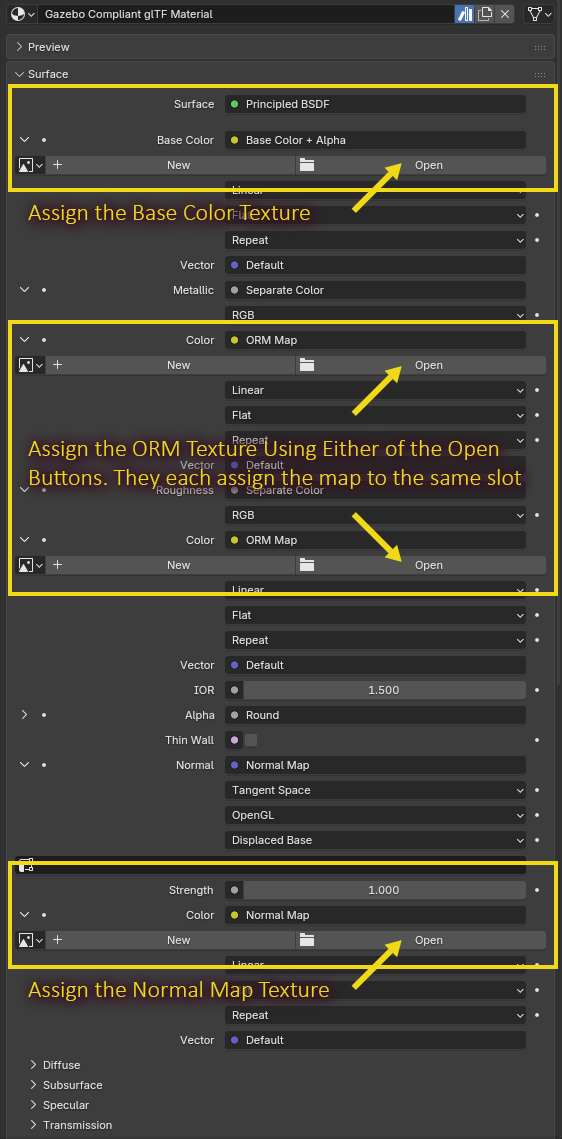
Assign the Base Color to the Base Color + Alpha slot
Assign the ORM to one of the ORM Map slot. Either will work–they are connected to the same source.
Assign the Normal Map if you have one.
Creating a simple ORM map
In an image editor of your choice, create a small image whose dimensions are a power of 2, such as 16 pixels by 16 pixels.
Fill the image with one of the following colors:
Shiny object, not metal: #FF0000
Rough object, not metal: #FFFF00
Shiny Metal: #FF00FF
Rough Metal: #FFFFFF